Docs · Running a stack
Running a stack
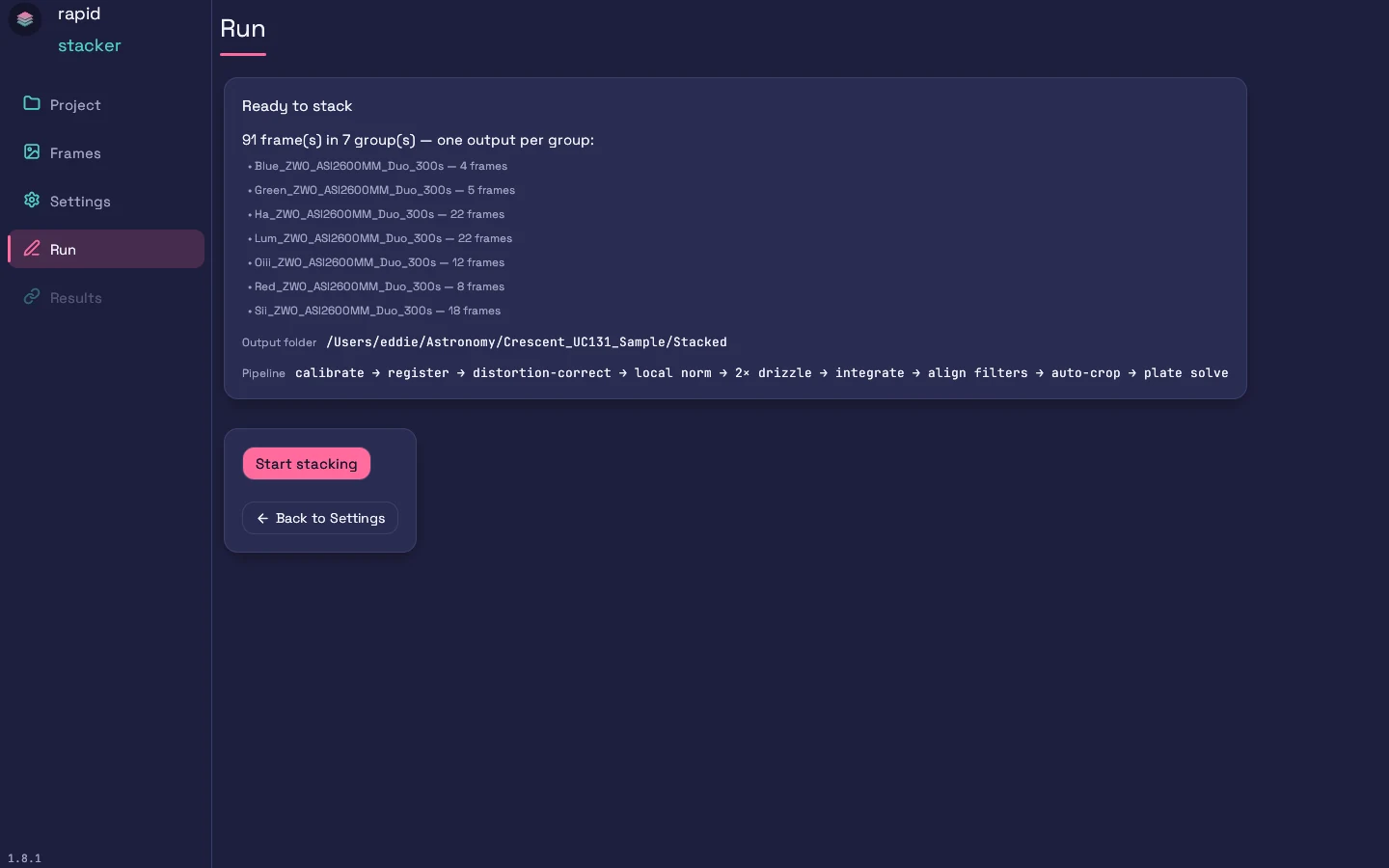
Before you start, the Ready to stack card summarises exactly what the run will do: the included frame count and the groups it splits into (one output per group), the output folder — with a warning if existing Stacked*.xisf files would be overwritten — a one-line digest of the effective pipeline (e.g. calibrate → register → distortion-correct → local norm → 2× drizzle → integrate → align filters → auto-crop → plate solve), and a note when no masters folder is set (an uncalibrated run). If a required folder is missing, the message names it.
Click Start stacking. The headline card walks through the pipeline phases — Discovering frames → Scoring reference candidates → Calibrating + registering frames → Integrating — with a frame counter, a status line (e.g. “registering frame 214 of 331”), and a progress bar. Below it, a summary card shows the discovered Lights / Bias / Dark / Flat counts, the chosen Reference frame, Elapsed time, and a projected ETA. A Live preview card shows the in-progress master, screen-stretched, updating as tiles integrate.
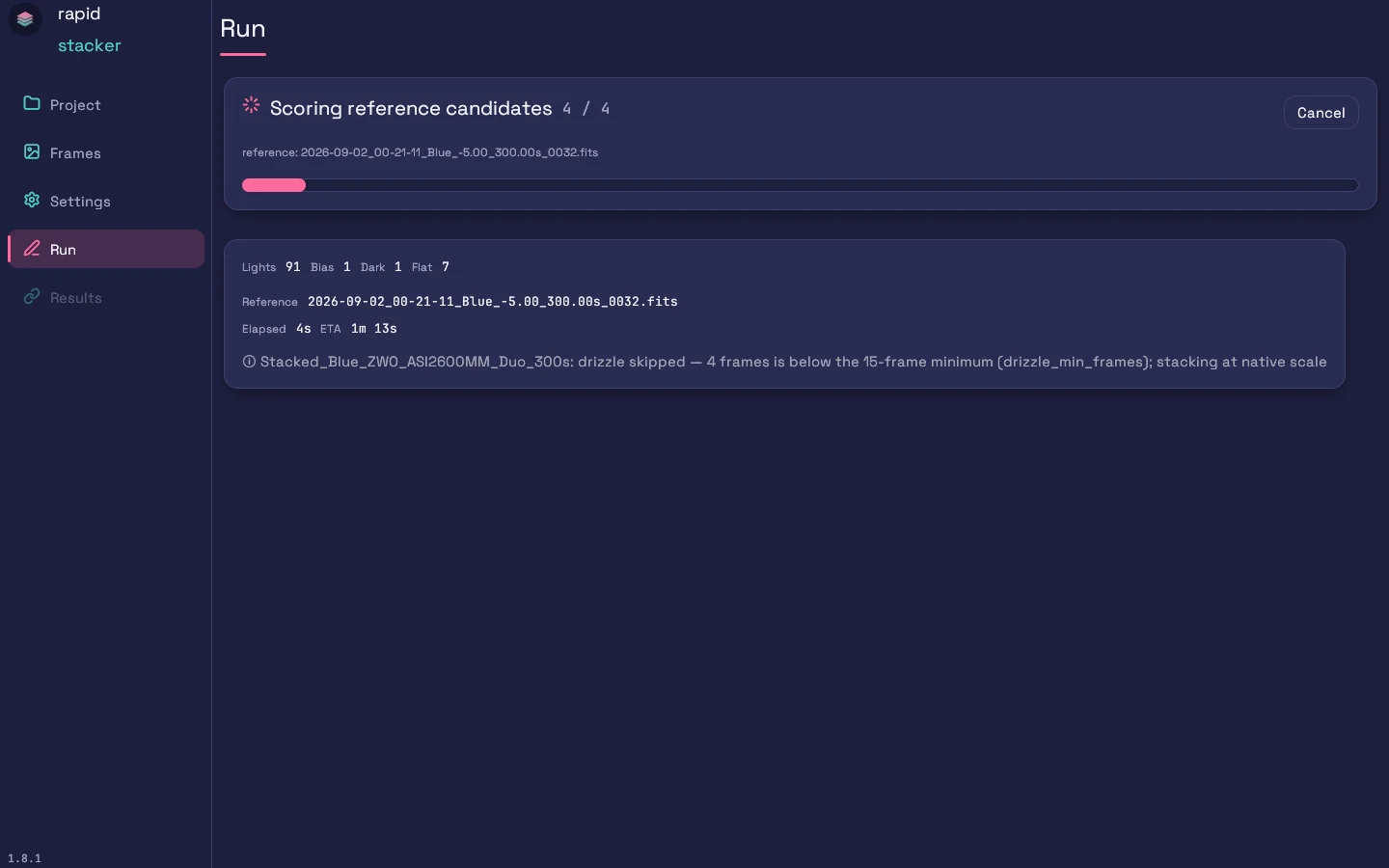
Things worth knowing:
- Cancel stops the run gracefully; the button reads “Cancelling…” while the worker drains. Groups that already completed are kept, and a See completed groups button takes you to their results. (Build Masters has the same Cancel — masters written before the cancel are kept.)
- If a run fails, the error text is selectable, a Copy error button copies it for a bug report, and the message is kept on the Run screen even after you navigate away.
- A run that finishes while you’re on another screen still lands its results — the Results step unlocks regardless of where you are.
- If lights are found but no masters, you’ll see: “No master frames found — calibration will be skipped (lights pass through unchanged).” The stack still runs — it’s just uncalibrated.
- If a group can’t be stacked (e.g. too few usable frames), it’s skipped with a reason while the other groups complete; the skips are listed on the Run screen.
- Multi-group sessions report “Group i of n” as each filter/exposure group processes in turn; plate solving runs per finished master (“plate-solving master…”, then the solve’s residual).
On success the app moves to Results automatically.
Results
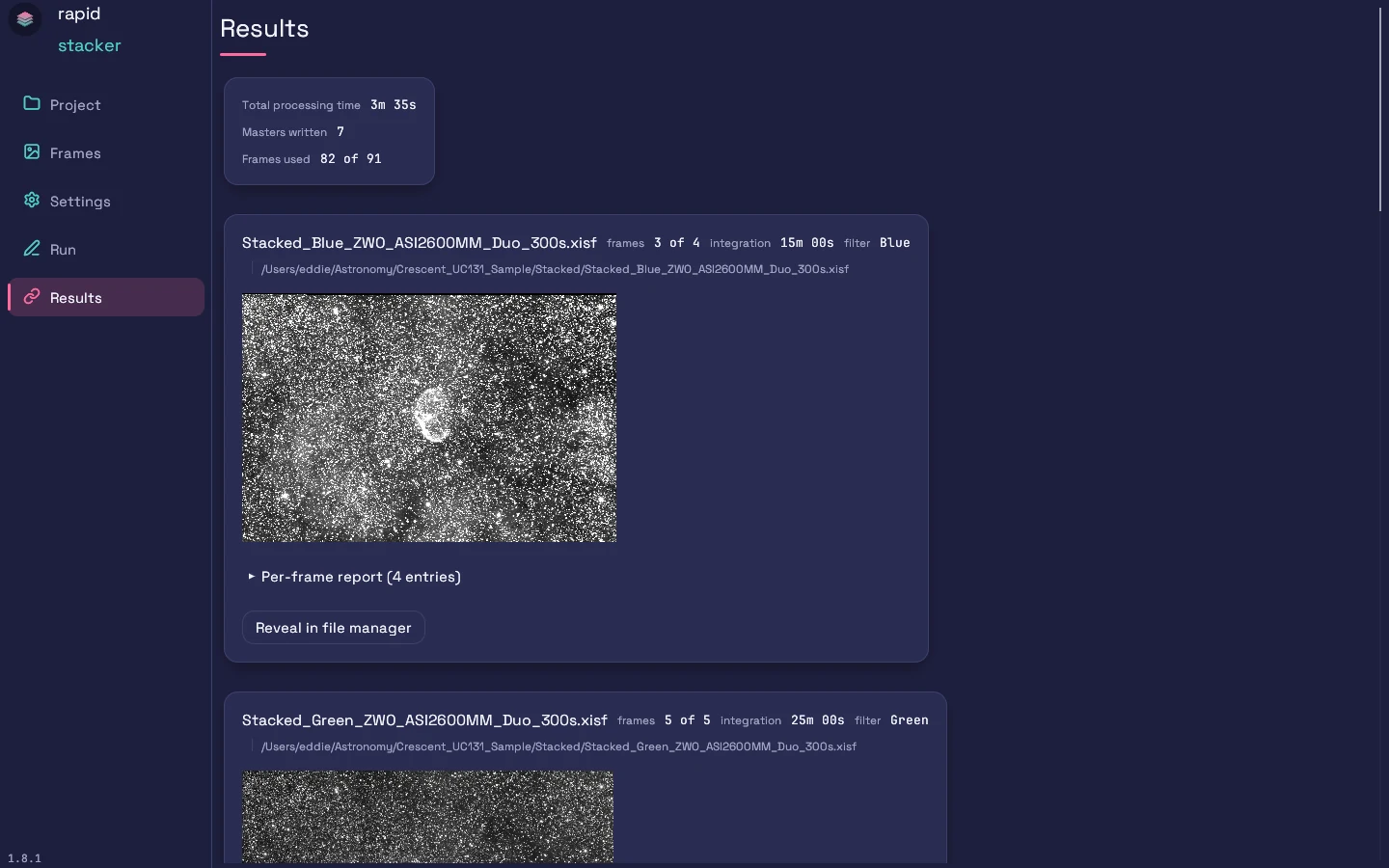
The summary card totals the run: Total processing time, Masters written, and Frames used (e.g. “302 of 331” — the difference is quality-gated or excluded frames).
Each group gets its own card:
- The output filename (e.g.
Stacked_Blue_ZWO_ASI2600MM_Duo_300s.xisf) with frames used, per-stack integration time, and filter. - The full output path, plus any companion outputs:
+ …_R/_G/_B.xisfper-channel masters, and+ …_colour.xisf (colour reference for PCC)for OSC runs. - A preview thumbnail of the master.
- A collapsible Per-frame report — one row per input frame with its kind, filename, registration Shift (dx, dy), integration Weight, and a note (e.g. why a frame was dropped).
- Reveal in file manager — opens the output’s folder with the file selected.
AstrometricSolution properties, so SPCC / SpectrophotometricFluxCalibration work on them immediately. A typical follow-on flow: crop → gradient removal → colour calibration (SPCC; use the _colour.xisf reference for OSC drizzle data) → stretch.Start a new stack returns to the Project screen — the results stay available (and the Results step stays unlocked) until the next run replaces them.
Next steps
- CLI & output formats — output file naming and contents in detail
- Troubleshooting — if a run didn’t do what you expected